A QR code for your counter, window and door
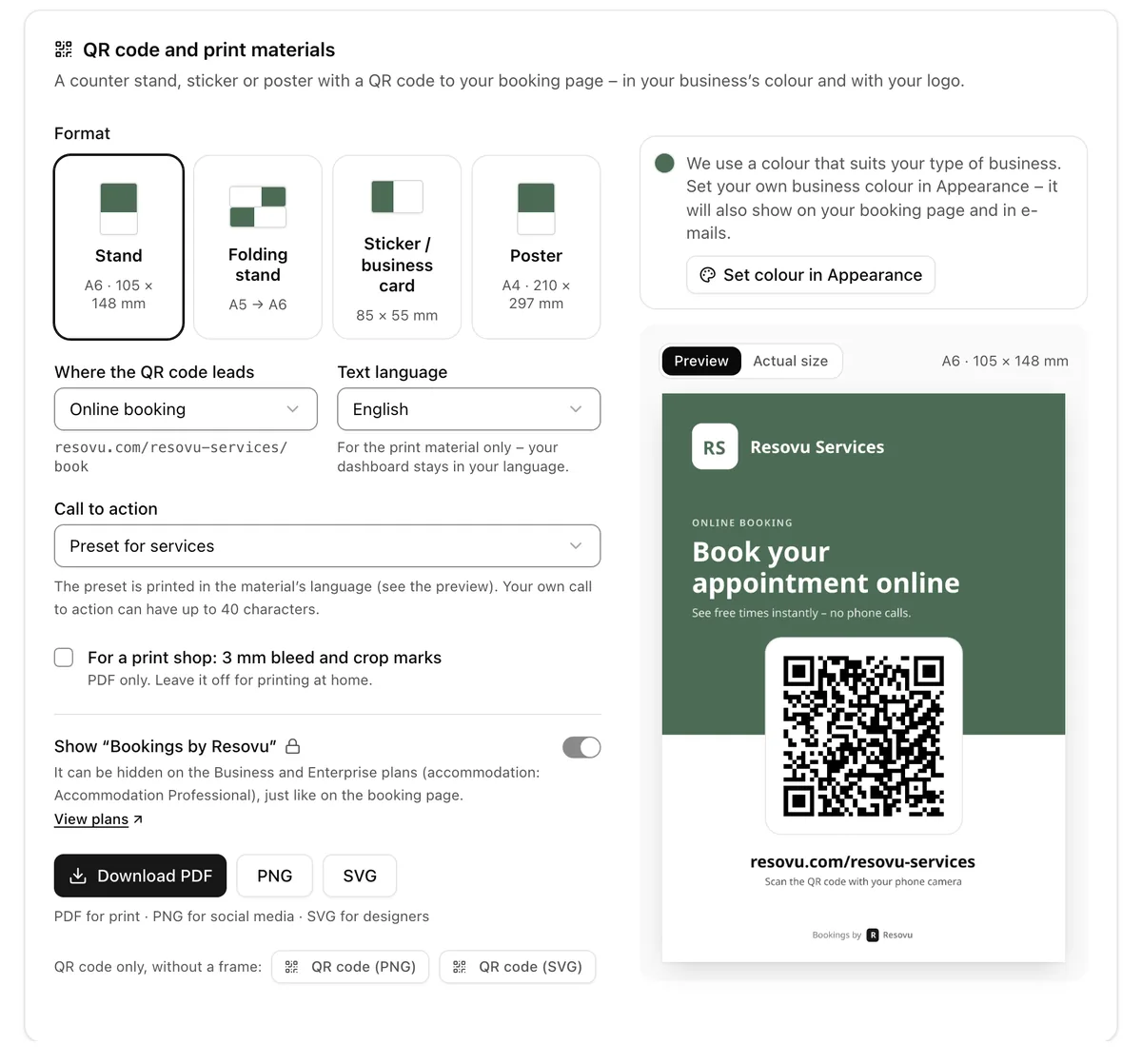
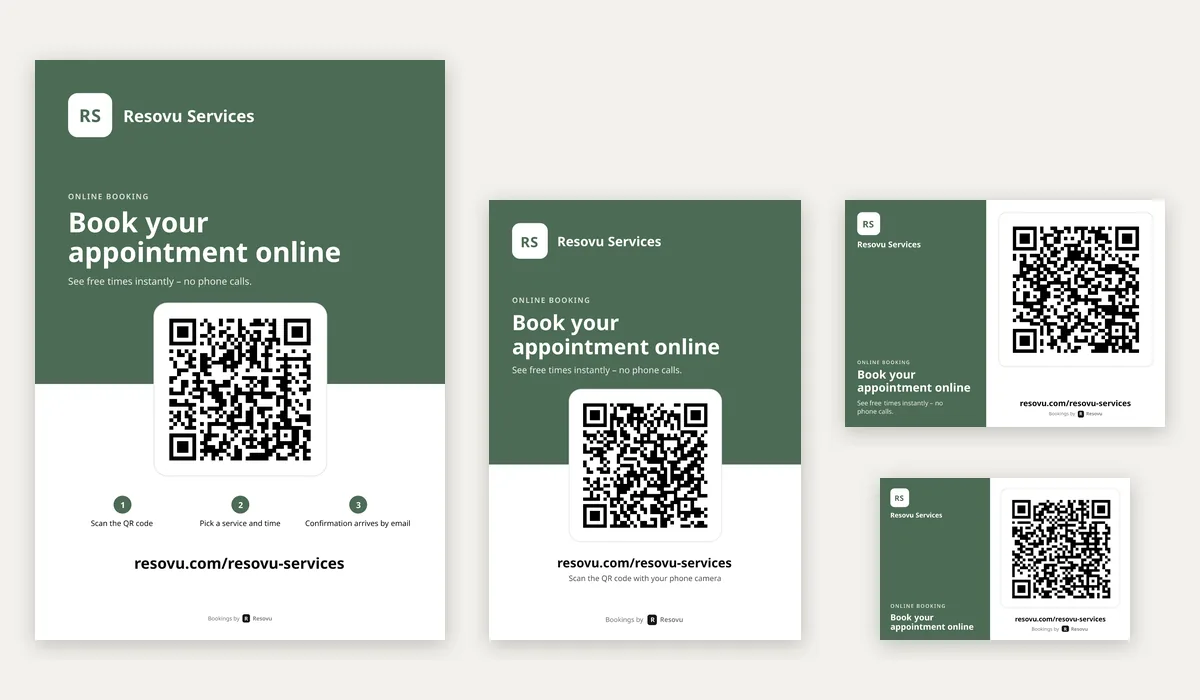
In Settings → QR code and print materials download a counter stand (A6), a folding stand (A5 → A6), a sticker or business card (85 × 55 mm) or an A4 poster with a QR code to your online booking – in your colour, with your logo, as PDF, PNG or SVG. The plain QR code is there too.
How to do it
Open Settings → QR code and print materials (or My pages → QR code and print materials).
Under Format choose Stand (A6), Folding stand (A5 → A6), Sticker / business card (85 × 55 mm) or Poster (A4).
In Where the QR code leads keep Online booking, or choose Business profile – or Gift vouchers if you sell vouchers online.
Choose the Text language and the Call to action: the preset for services or accommodation, or Your own text of up to 40 characters.
For a print shop tick For a print shop: 3 mm bleed and crop marks; for printing at home leave it off.
Check the preview and click Download PDF – or PNG for social media and SVG for designers.
Print it, scan the code with your phone and check that the right page opens.
Tips and common mistakes
- If you haven’t set your own brand colour, the materials use a colour that suits your type of business – for example brown for accommodation, teal for health care or green for massage and wellness. Set your own colour and logo in Settings → Appearance (button Set colour in Appearance); the colour then also shows on your booking page and in emails. Without a logo your initials are shown.
- Without bleed the sticker PDF is an A4 sheet of 10 for an office printer – cut along the grey lines; with bleed it is one sticker for a print shop. The folding stand is an A5 sheet folded in half and reads from both sides of the counter.
- Put the stand where people pay or wait, the sticker on the door, the mirror or the room key card and the poster in the window – at eye level and in good light, so phones can read the code.
- The code opens resovu.com/your-address/book. Once your own domain from Settings → Embed is live, the code and the printed address use it instead.
- Each material adds its own tag to the link, so bookings appear in Analytics → Booking sources as QR – stand, QR – folding stand, QR – sticker and QR – poster, and you see which one works.
- Just the code without a frame: QR code (PNG) or QR code (SVG) at the bottom of the section.
Why it matters
Customers scan the code at the counter, in the window or on the door and book their next visit or stay right away – even outside your opening hours, without calling.
Frequently asked questions
Can I hide “Bookings by Resovu” on the print materials?
Only on the plans that can remove Resovu branding – Business, Enterprise and Accommodation Professional. The materials follow the Remove Resovu branding switch in Settings → Appearance, exactly like the booking page.
Can the texts be in a different language from my dashboard?
Yes. Text language applies only to the material, so you can print a German poster while your dashboard stays in English.
Do printed codes stop working when I change something?
No. The code always leads to the same address; a new colour, logo or text just needs a new print. Codes printed before you added your own domain keep working on resovu.com.
Why do my materials have a colour when I never set one?
Without your own brand colour, Resovu picks a print colour for your type of business – from accommodation mode, your business and service names or the industry page you signed up from. Once you set your own colour in Settings → Appearance, the materials use it.
Where to find it in Resovu
- Open in Resovu
Menu path: SettingsQR code and print materials
Was this article helpful?
Related
- Getting started and appearanceWhere do I find the link to my booking page?
- Website and integrationsHow do I add a booking button to my Google Business Profile?
- Website and integrationsHow do I add a booking link to Instagram and Facebook?
- Getting started and appearanceHow do I get started with Resovu?
- Getting started and appearanceHow do I change the color and logo of my booking page?
Didn't find the answer?
Write to us via Support in the admin or at resovu@resovu.com.
Contact support